MN offers 4 automatic backup locations (Local / WebDAV / Baidu NetDisk / Google Drive) + full export bundles + CloudKit cross-device sync. Below: how to set each up, capacity guidelines, and what to do when things go wrong.
SETUP · Configure each channel
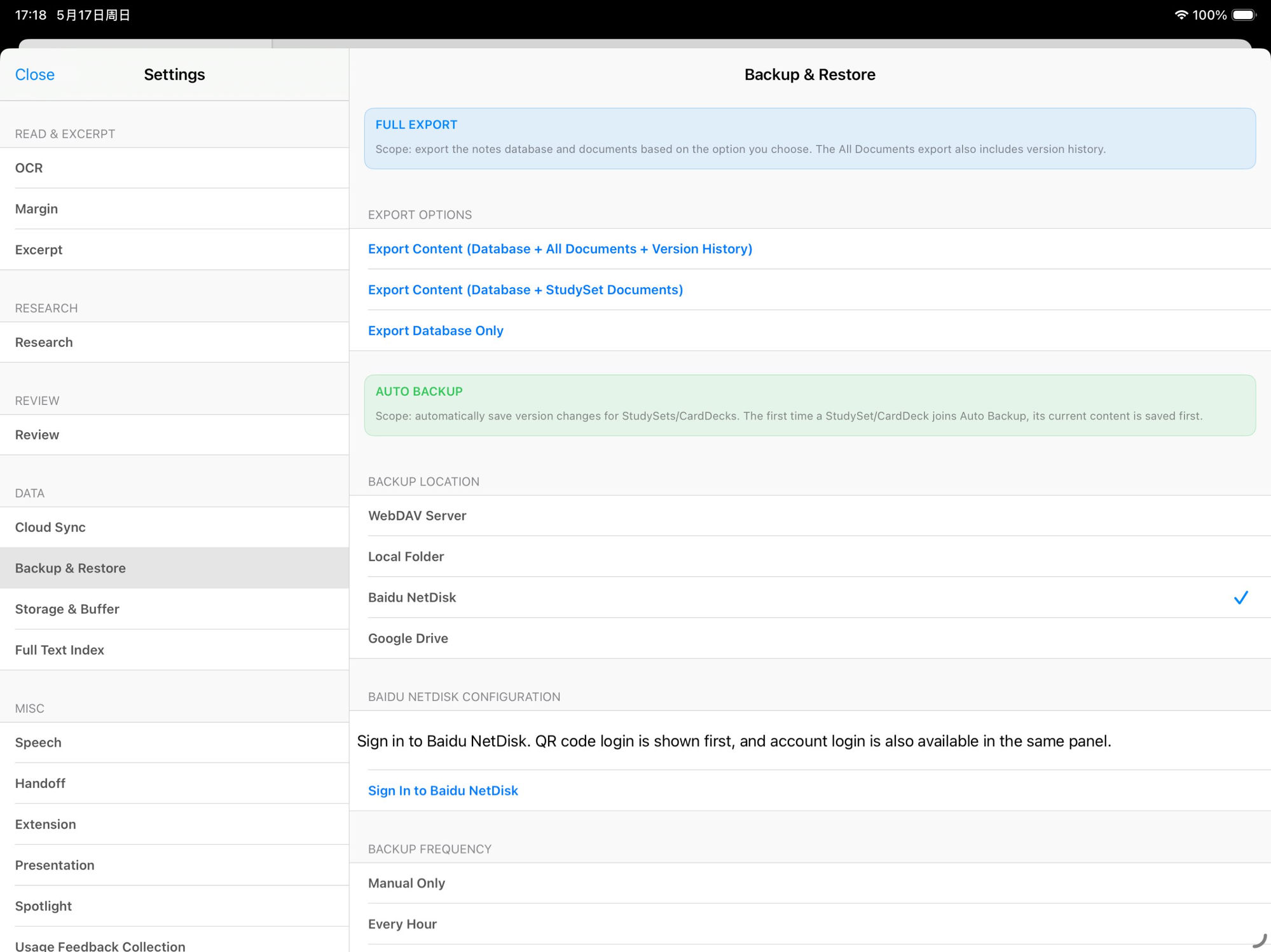
Each card below is one storage location or export method. All share one entry point: open MN on iPad / iPhone / Mac → Settings → Backup & Restore.
No network · Rock-solid · No cloud quota
Backup format: .marginbackupall. You manage the file — store it wherever you like. Nothing gets uploaded automatically.
Synology / self-hosted / corp WebDAV / Jianguoyun
https://dav.example.com/), Username, PasswordSupports HTTPS with self-signed certs; for Jianguoyun use an "app password" not your login password; Synology / QNAP built-in WebDAV works with the regular account.
China-region preferred · Large capacity · QR login
Bundles are placed in a dedicated MarginNote folder in your Baidu NetDisk. Standard accounts have plenty of room for multiple full Study Set backups.
Overseas preferred · OAuth · Cross-device access
Bundle size limited by your Google Drive quota (15 GB free shared with Gmail / Photos). Consider toggling "include original PDFs / videos" — notes-only data is typically < 200 MB.
Long-standing · Manual · Best for migrating to a new device
MarginNoteBackup(yyyy-MM-dd-HH-mm-ss).marginbackupall to any location.marginbackupall file → importThis mechanism predates the MN 4.3 architecture. Auto-backup is for continuous safety; Full Export is good for occasional manual archives to an external SSD.
📌 Settings entry: MN → Settings → Backup & Restore. You can enable multiple at once — recommended: at least "Local + one cloud" — one copy you control, one copy off-site.
SYNC · iPad ↔ Mac auto-aligned
This is Apple's own iCloud sync — no third-party account needed. It's different from "backup": CloudKit keeps your iPad and Mac aligned with the current latest state; backups store historical snapshots in a place you can retrieve from later. Run both for the best safety net.
Settings → Cloud Sync → choose CloudKit Sync.
Uses whichever iCloud account is signed in; all devices on the same Apple ID join automatically.
Use it: iPad + Mac alternating workflow; want to pick up where you left off.
Skip it: single-device users; very large libraries with full iCloud quota.
If sync hangs or behaves unexpectedly, check Reset Sync Cache under Settings → Cloud Sync. First confirm that you have an independent backup and read the current version’s confirmation prompt. Reconciliation and completion depend on the data and sync state.
Choose "Enable manually per Study Set" or "Enable automatically": manual gives finer control (less-important sets don't eat quota); automatic suits "new set = synced set" users.
SYNC · Status you can see
MarginNote 5 uses the same sync channel, iCloud CloudKit. The change is that you can see what sync is doing, and you have a place to look when there is a problem.
The home screen shows the status of iCloud sync. Tap it to open the Sync Center: notes and original documents are listed separately, with recent activity, suggestions and an exportable report.
Before MarginNote applies changes from iCloud, it saves a history version. After a manual sync, MarginNote tells you what it did.
If the original document is not on your device yet, you can continue to use the notes and the mind map. The Sync Center shows that the document is still coming from iCloud.
Fixed cloud notes being deleted when sync was turned off for one study set or modes were switched during an upload. Manual sync now uploads missing cards and referenced notebooks again, which fixes missing cards and broken references.
Real value when things go wrong
A sync & backup system's real value isn't when it works — it's when it breaks. This section maps recovery paths for every failure mode, so you know which button to press when things go sideways.
Checking for updates / Preparing download / Downloading (n/m) / Preparing upload / Uploading (n/m) / Sync completed / Sync failed
Each state corresponds to a real sync stage — not vibes, actual progress.
If CloudKit Sync gets stuck or behaves oddly, you can reset the sync buffer in Settings → Cloud Sync — all data re-compares. Nuclear option, with second confirmation.
Manual sync attempts to save a local database backup first. Recovery depends on backups that were successfully created and retained. Automatic backups do not replace an independently saved copy of important material.
If you stop using CloudKit Sync and want to clear cloud data, the settings let you manually delete CloudKit zones — frees iCloud quota, local data unaffected.
Honest boundaries
"Never lose data" sounds great — but no engineering system can actually promise that. MN chooses not to overclaim, and instead tells you exactly what each layer of protection does.
Sync is eventual consistency based on change tracking — completion time varies with network conditions, data volume and device state. It's not Google Docs character-level co-editing. MN doesn't do realtime collab.
"The architecture itself protects data" relies on auto-snapshots being on (the default). If you manually disable auto-snapshot AND have never run a manual / baseline snapshot, the state from one second before a crash is not guaranteed by the code to be recoverable. What's recoverable is "the most recent complete snapshot".
Cloud outages, full device failure, Apple ID issues, accidental deletes — all of these can happen. The new architecture + Auto Backup + Full Export reduce risk through layered protection, but no "absolute safety" claim. Recommended: periodic Full Export + one copy somewhere you control (external SSD / your own NAS / a cloud account different from your daily one).
About versions: the "new data architecture" described on this page was introduced in MN 4.3.
This section is for engineering-minded readers — what the MN 4.3 data architecture is, why it was rebuilt, and how it differs from CloudKit-era sync. This doesn't affect day-to-day use — just follow the steps above and you're set.
MN 3.x → 4.2: CloudKit Sync (record-level) + Full Export → Since MN 4.3New data architecture · Auto Backup · Local integrity
Architecture
At the center is the data architecture itself (introduced in MN 4.3), reused in two places: local integrity safety net / Auto Backup. Below, Full Export and CloudKit Sync are legacy mechanisms (MN 4.2 and earlier), preserved alongside the new architecture.
MN 4.3+ · Foundation
Since MN 4.3, MarginNote introduced a versioned data foundation — not just "backup" or "sync", but a foundation shared by local integrity and Auto Backup. This is the real architectural upgrade in this generation.
Content-addressed SHA-256
Every piece of data is addressed by SHA-256 hash — identical content stored once. Files use writeToFile:atomically:YES; on index-insert failure, the just-written file is rolled back.
Snapshot-level atomic unit
Each Study Set snapshot is a Manifest: versionNumber + deviceId + content hash + dependency graph. Sync and recovery operate on manifests, not fields or records.
Metadata atomic commit
Snapshot metadata is committed inside a SQLite transaction. Either the snapshot lands fully, or it never appeared — no half-committed manifests.
⚠ This isn't a single global ACID transaction across CoreData + object pool + snapshot DB. It's "object pool atomic + manifest atomic" as two separate atomicities. The user-facing experience is a version-control safety net, not a database-level ACID journal.
MN 4.3+ Application ① · Local integrity
"Lost handwriting", "mind map corruption", "notes vanished after crash" are MarginNote users' long-standing pain points. The new architecture catches edits as snapshots locally — no remote destination required.
Edit a Study Set → marked dirty → if editing pauses 5 minutes → an immutable snapshot is committed locally.
If object content fails hash verification — bad sectors, corrupted file — verifyIntegrity + rebuildIndex can rebuild the object index.
Repair Missing Baseline Versions (Recommended) — only shown when uncovered Study Sets are detected⚠ Honest boundary: the protection above relies on auto-snapshots being on (the default). If you manually disable auto-snapshot AND have never run a manual / baseline snapshot, "the state from one second before the crash" is not guaranteed by the code to be recoverable. What the architecture gives you is recovery to the most recent complete snapshot, not lossless per-keystroke versioning.
Download MarginNote 5 and put your notes into a tool that treats data safety as an explicit engineering job.